
Seferi Driver Mobile App
The driver runs the job from a phone, the office sees it at the same moment
- Four stages
- Arrived to load → delivered
- Required document
- The stage won't close without it
- Odometer
- The driver enters it, vehicle cost follows
Some of the brands that trust us





- and more
The module from start to finish
The driver signs in on a phone and runs the job from there: the active job's pickup address, delivery address, customer, load details and any notes attached to it. The address opens on a map and navigation starts from there.
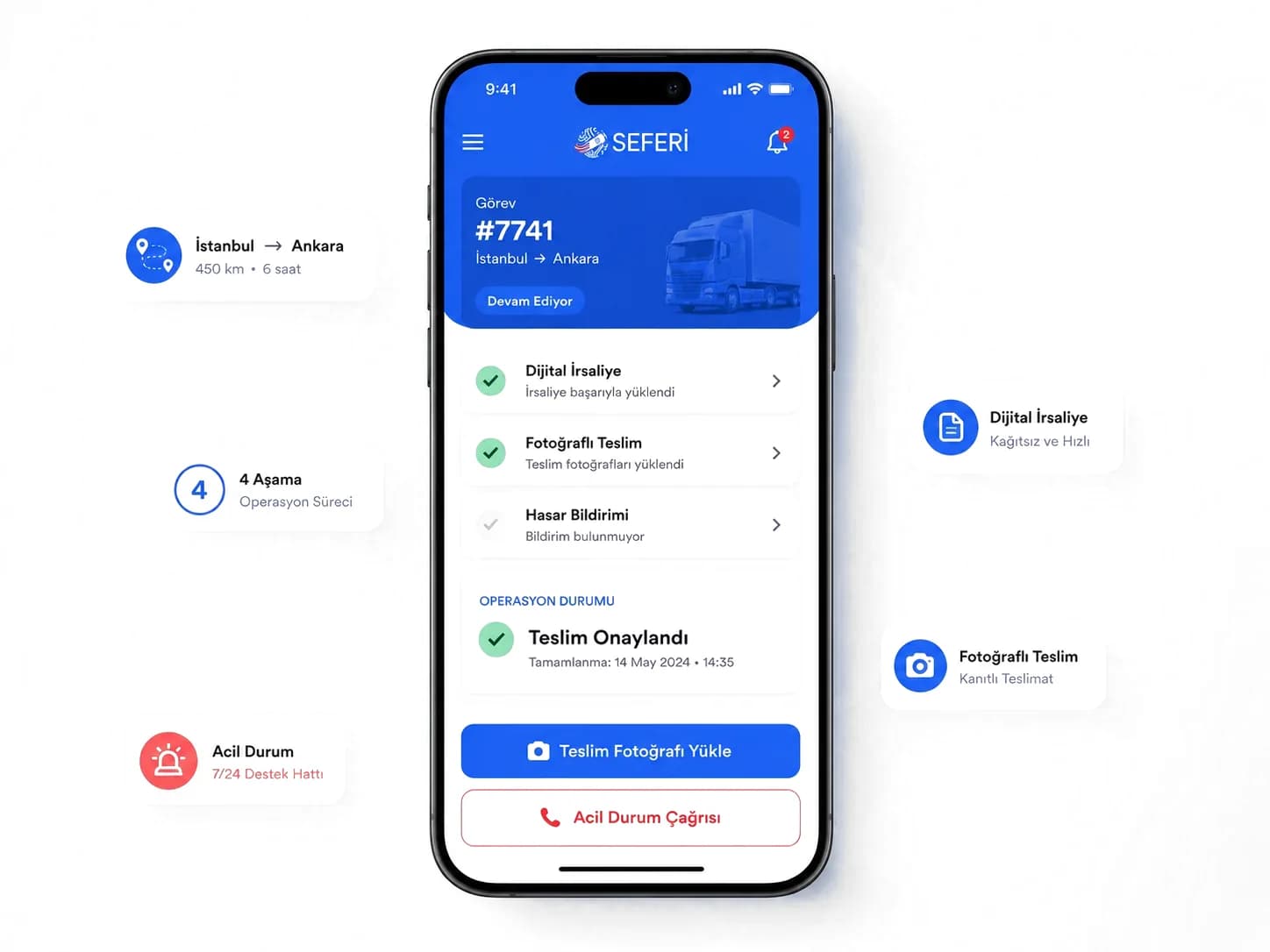
Product screen
Stage advanced, office informed
The driver works through "arrived to load", "loaded", "on the road" and "delivered" in the app. The planning screen in the office updates at the same moment — nobody needs to phone for a status.
How the work flows
The document is the condition for the stage
The waybill, CMR, proof of delivery or a photo of the handover is uploaded straight from the phone. A document marked as required has to be there before the stage closes.
- 1
The trip is assigned to a driver
- 2
The driver opens the active job on the phone
- 3
Advances the stage and uploads the document
- 4
The office screen updates at the same moment
Panels on the screen
The odometer comes from the driver
The driver enters the vehicle's odometer reading in the app. Period kilometres per vehicle, and the costs that follow from them, are built this way.
Driver MobileThe stage on screen instead of the "did you load, where are you" phone call; a document uploaded at the moment of delivery instead of one hunted down at month-end.
What's on the screen
The real names of the panels inside the product, and what each one shows.
- Active job
- Pickup address, delivery address, customer, load details and job notes on one screen.
- Stage steps
- Arrived to load, loaded, on the road, delivered.
- Document upload
- Waybill, CMR, proof of delivery and a photo of the handover, straight from the phone.
- Odometer reading
- The driver enters the vehicle's odometer; period cost per vehicle is built from it.
- Trip history
- The jobs the driver has already done — the same record both sides look at in a payment conversation.
- Emergency alert
- An accident, breakdown or safety problem reaches the office immediately.
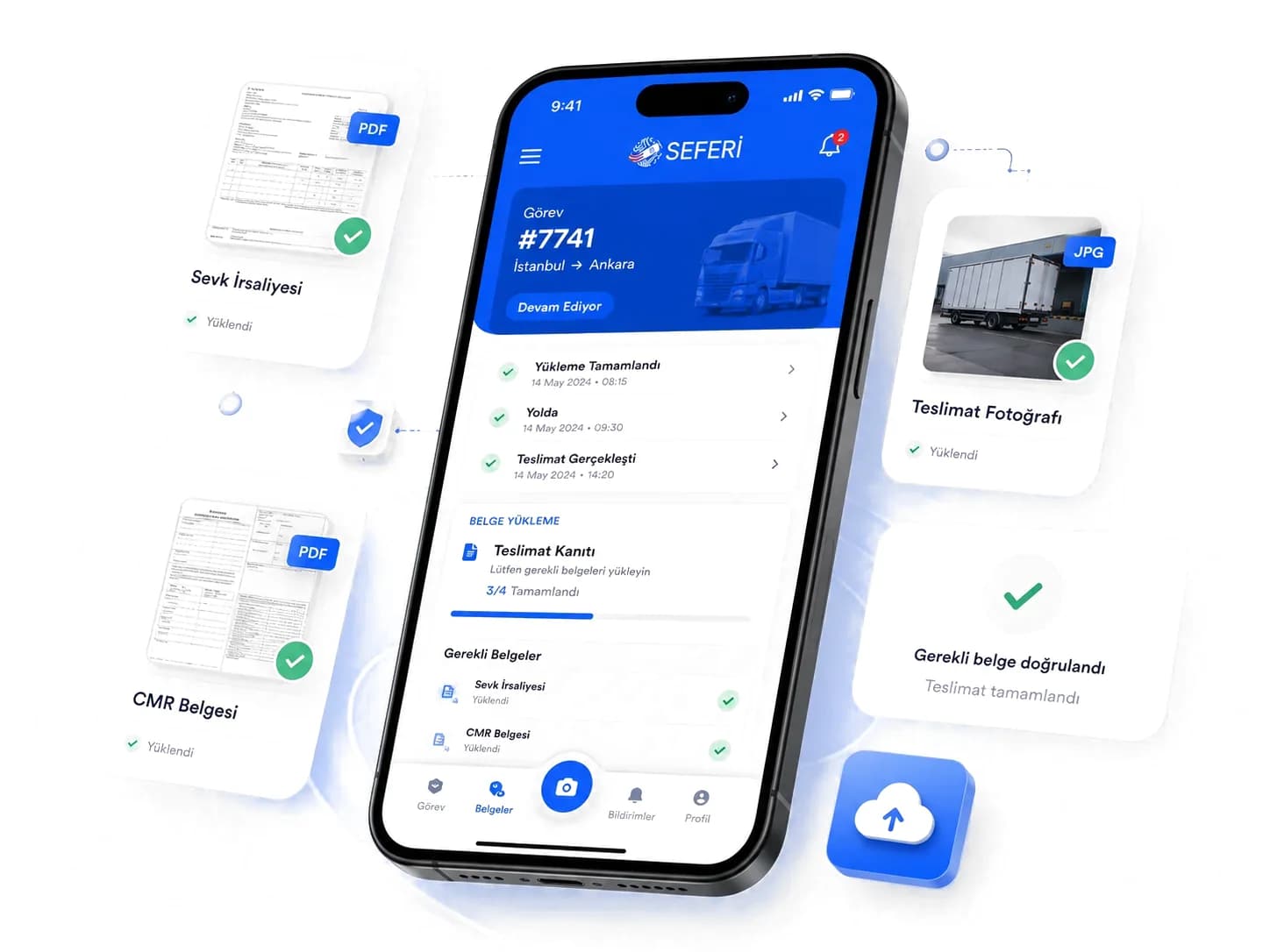
No document, no closed stage
Waybills, CMRs and delivery photos go up from the phone; a stage won't close until its required document is in.
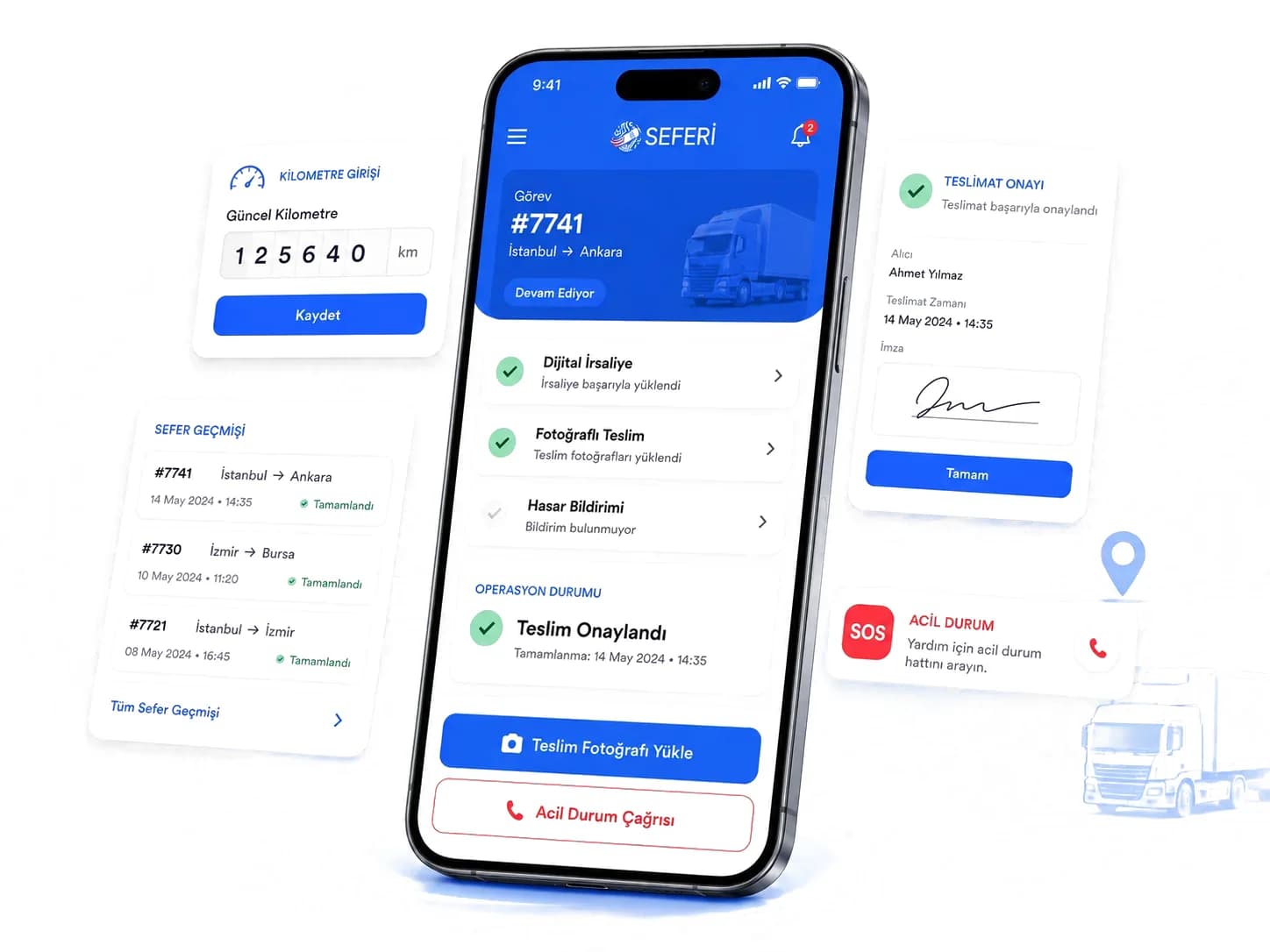
Odometer, history and emergencies
Drivers log the odometer, see their past trips and close delivery with a signature; an incident alerts the office at once.
What does this module take over?
On the left how it runs today, on the right how it runs in Seferi.
The office spends the day calling drivers to ask "did you load, where are you?"
The driver advances the stage in the app and the planning screen updates at the same moment; nobody has to call.
The delivery document stays in the driver's cab and gets hunted down at month-end.
A document marked as required for a stage has to be uploaded before that stage closes; nothing is chased later.
Opening a user account in the office for every driver is a job of its own.
Drivers handle their own sign-up and account from the app.
Used in the daily work
Every item maps to a screen inside the product — none of it is a roadmap.
- Active job: pickup and delivery address, customer, load details and job notes
- Open the address on a map and take navigation from there
- Advance the stage — the planning screen in the office updates at the same moment
- Upload the waybill, CMR, proof of delivery or a photo of the handover from the phone
- Report the vehicle's odometer reading from the app
- Trip history — both sides look at the same record in a payment conversation
- Emergency alert for an accident, breakdown or safety problem
Who uses it
The same module does not open the same screen for everyone on the team.
Driver
Runs the job from the phone: advances the stage, uploads the document, enters the odometer.
Planner
Their screen updates the moment a stage advances; no call needed to ask for status.
Accounting
Looks at the trip history when calculating what is owed.
Once this module is switched on
In the demo you see these on your own data.
Phone traffic between the office and the driver largely stops.
The delivery document is in the system before the stage closes.
Both sides look at the same record in a payment or bonus conversation.
What gets asked most before a demo
Who creates the driver's account?
Drivers handle their own sign-up and account from the app; nobody in the office has to create a user for each driver.
What if a document isn't uploaded?
A document marked as required for a stage has to be there before that stage closes; nothing is chased later.
Can the office see where the driver is?
The planning screen updates as each stage advances. If a vehicle-tracking integration is connected, the position is visible too.
See Driver Mobile running on your own operation
The demo is not a slide deck; it is a session that runs on your own data.
- 01
A 30-minute call
We listen to your operation: how many vehicles, which lanes, which step is still done by hand today.
- 02
A run on your own data
We read a real request from your own inbox and turn it into a quote; you see your own lanes on screen.
- 03
A rollout plan
Which module goes live on day one, what gets migrated, and the per-vehicle price — in writing.