

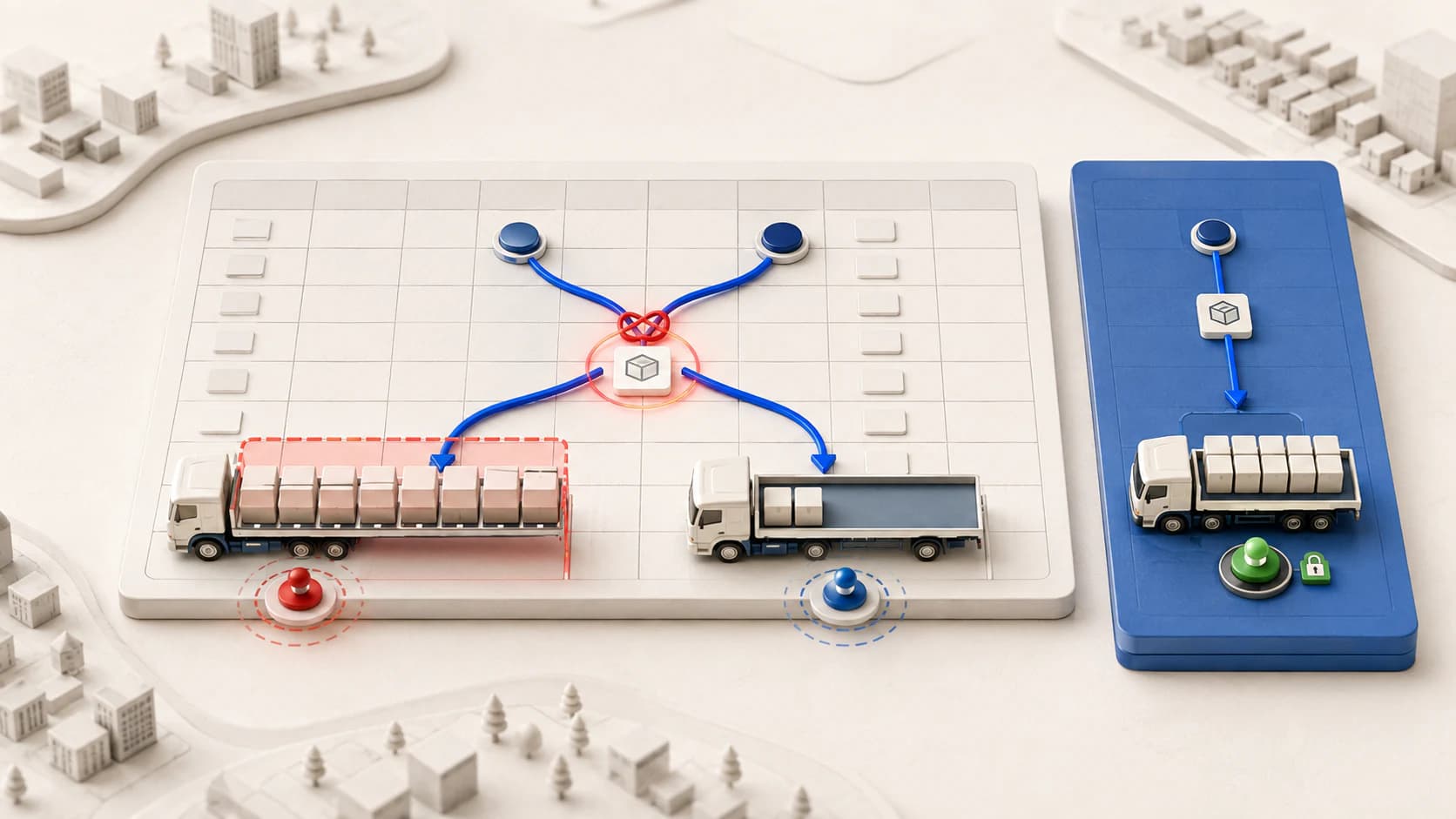
Dispatch planning genuinely works in Excel for a small fleet — the problem isn't the spreadsheet itself, it's who holds the one true copy of it. When two planners open the same file in two different tabs, each assumes their own screen is the current one.
In a small fleet, dispatch planning genuinely runs in Excel: one column for the order, one for the vehicle, one for the driver. Up to about fifteen vehicles, that setup usually holds.
The problem isn't the spreadsheet itself — it's who holds the one true copy of it. When two planners open the same file at the same time, each assumes their own screen is current — and the same job can end up assigned to two different vehicles.
Dispatch planning genuinely works in Excel for a small fleet. It breaks down not with trip volume, but with the number of planners working at once.
Which columns does a dispatch-planning sheet need?
If you would rather not build these columns from scratch, download the dispatch plan Excel template. It shows which load is assigned to which vehicle, the fill rate, and the dispatches that still have no vehicle.
Seven pieces of information belong in their own columns: order number, pickup address, delivery address, weight or volume, delivery window, assigned vehicle, status. If any one is missing, the planner tries to fill the gap from memory.
| Column | What it's for | What happens if missing |
|---|---|---|
| Order number | The job's unique identity, prevents the same job being entered twice | The same job can get planned twice by mistake |
| Pickup / delivery address | The input for route and distance calculation | Vehicle assignment ends up geographically illogical |
| Weight / volume | Matching against vehicle capacity | A vehicle looks full when there's room, or the reverse |
| Delivery window | Sequencing and timing constraint | A late delivery gets planned without anyone noticing |
| Assigned vehicle | The single source of who has the job | Two people can assign the same job to different vehicles |
| Status | What stage the job is at | A completed job gets re-planned |
Each column looks simple on its own. The problem is keeping them together, current, and in a single copy — Excel itself wasn't designed for that; spreadsheet software isn't built to reconcile a record that several people are changing at once.
Why can't vehicle capacity be tracked in Excel?
It usually isn't, which is the source of the problem. Even a dedicated capacity column doesn't show the running total of jobs already loaded onto a vehicle that day — the planner has to add it up by hand.
As the fleet grows, that manual addition stops being practical. It's still doable with ten vehicles; with forty, every new job means checking forty rows one by one. At that point the planner either skips the addition or estimates — both lead to the same outcome: a vehicle fills up earlier than expected, or comes back with capacity to spare.
A formula-driven total column partly solves this — but only partly. A formula can add up the jobs already loaded that day; it can't know whether the vehicle is still en route or free, or when it'll become available. Unless that's entered by hand too, the formula sums an incomplete sheet correctly and produces a wrong answer.
What happens when two people open the same file?
If two planners are working the same day and the file lives somewhere shared, each updates whichever copy they opened or downloaded. Unless the changes are merged, whoever saves last is treated as "correct" — the other planner's assignment quietly disappears.
This is the most expensive mistake in dispatch planning because it's caught late: only after the vehicle has left does it surface that two different jobs landed on the same vehicle, or that one job was never assigned at all. We covered where this error comes from, and where manual planning breaks down, in how is dispatch planning done.
The wasted vehicle-kilometres from that mistake flow straight into empty kilometres, and the repeated coordination loss shows up in profit per vehicle at month-end.
Tools like Google Sheets that allow simultaneous editing make this collision visible but don't resolve it: they can show that two people changed the same row at once, without deciding which assignment is correct. The decision still falls to a person — the moment of noticing the error just moves a bit earlier.
| Situation | Excel (shared file) | Optima |
|---|---|---|
| Two people assign the same job | Whoever saves last wins, the other assignment disappears quietly | An applied suggestion closes automatically for everyone else |
| Is the vehicle at capacity? | Unknown unless added up by hand | Checked automatically with every suggestion |
| Which job is on which trip | Correct as long as the columns are kept current | Derived automatically from the trip record |
That table doesn't mean Excel is a bad tool — it works well for a small fleet with one planner. What it shows is that conflict control lives in the discipline of whoever uses it, not in Excel itself; as the fleet and the number of planners grow, keeping that discipline up by hand gets harder.
One true copy, on one screen. When one planner applies a job, the same suggestion closes automatically for everyone else.
Try it with your own ordersWhen is it time to move on from Excel?
There's no fixed vehicle-count threshold; it depends less on fleet size than on how many planners work at once and how busy a given day gets. A fifteen-vehicle fleet run by one planner on a calm schedule can work comfortably in Excel.
The signal is clear: if the same job keeps getting double-planned, a vehicle's capacity keeps getting missed, or a file keeps ending up in a "which one is current" argument, the sheet has stopped being a coordination tool and started producing coordination problems.
How often those signals show up is itself a measure. A conflict once a month can be shrugged off; more than one a week means the planner is spending a meaningful share of their time fixing the error rather than planning new jobs — the real cost is piling up somewhere the planner isn't noticing.
We covered where Excel breaks down more generally — subcontractor cost, the quote-trip-invoice link, formulas silently breaking — in where Excel breaks down in trip tracking; this article focuses specifically on vehicle assignment and capacity.
See your own columns — which ones stay manual, which get calculated automatically.
Try 14 days freeFrequently asked questions
Which columns does a dispatch-planning spreadsheet need?
At minimum, these belong in separate columns: order/job number, pickup and delivery address, weight or volume, delivery window, assigned vehicle, assigned driver, and status (waiting/assigned/en route/completed). If any one is missing, the planner tries to fill the gap from memory — and information held in memory can't be shared.
How is vehicle capacity tracked in Excel?
Usually it isn't, which is the source of the problem. Even with a dedicated capacity column, it doesn't show the running total of jobs already loaded onto a vehicle that day — the planner has to add that up by hand. As the fleet grows, that manual addition stops being practical.
Sources and references
This article is for general information; consult the relevant authority or your accountant for binding interpretation.